
Data migration is a process of moving data from one computer storage type to other storage types. Data migration is not only moving data between two systems, but it also ensures that moving data should be of high quality, fit-to-use, consistent, is not redundant and can be used properly in target business processes to achieve organizational goals.
In a new implementation of S/4HANA system, data is migrated from SAP system/Non-SAP system to HANA system. S/4HANA provides comprehensive migration solutions with no programming requirement by the customer, automated mapping of data between source and target system, predefined templates, easily integrated custom objects, reduce test effort and minimize downtime.
Following are different options available for data migration in SAP S/4HANA on premises:
As per note 2287723 – LSMW in SAP S/4HANA on-premise edition: LSMW (Legacy system migration workbench) is available in S/4HANA but it is not recommended to use this tool as it can provide an incorrect interface for some applications of S/4HANA.
SAP Data Services provides capabilities for data extraction, transformation, and load (ETL), as well as data quality management, and text data processing. The ETL capabilities of the tool can be used free of charge, but the data quality features require a Data Services license.
SAP Rapid Data Migration based on SAP Data Services software is offered to migrate data into SAP S/4HANA (on-premise). This content has been specifically built for the new SAP S/4HANA target system, its interfaces and data structures. The content is free of charge and can be downloaded from the SAP Service marketplace.
Here we will discuss data migration in S/4HANA system using Migration Cockpit. Other Options will be discussed in the next blog.
S/4HANA migration cockpit is an automated migration tool provided with preconfigured content and mapping for each migration object. For all major functional areas like product, customer, bank, profit centre, cost centre, plant, GL etc, migration objects are predefined and their sequence and dependency is also defined. Each migration object contains its own predefined template in which source data is uploaded. Automatic mapping is done in source and target structures using the template. Migration programs are automatically generated for validating data, simulating data and loading into the target system.
Migration cockpit is browser based (WebDynpro) interface. No additional setup or activation is required once we setup SAP S/4HANA system.
Key Features of Migration Cockpit
Steps to Migrate data using MC
Below is an overview of Migration cockpit. It shows a different element, the relationship between them and flow of data from a file to a database.
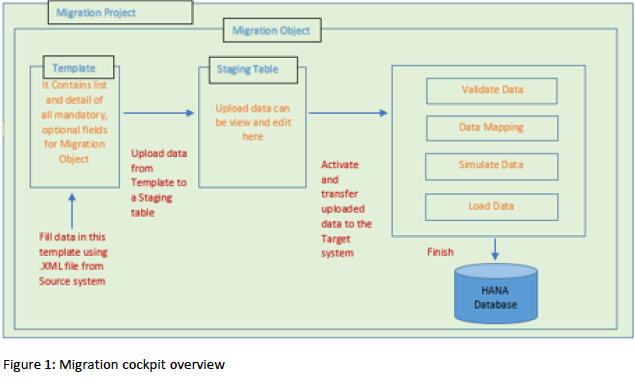
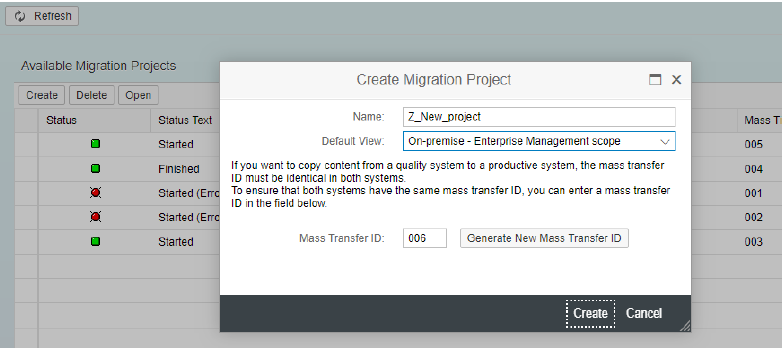
I. Migration Project – First step is to create or open migration project in MC. Migration project facilitates the transfer of data from the source system to S/4HANA system and monitors migration status. The migration project is always associated with ‘Transfer ID’. This transfer id is a unique identifier, which facilitates the transfer of projects between different systems of the landscape. For example, if the migration project is transferred from quality to the production system, then project transfer id should be the same in both systems.
Below is screenshot where a new project Z_NEW_PROJECT is created with transfer id 006 and default view is On premise.
II. Migration object- Once migration project has been created, then migration object has to be chosen. Migration objects are predefined and provided by the SAP system.
Below is a screenshot of migration object available on a migration project.
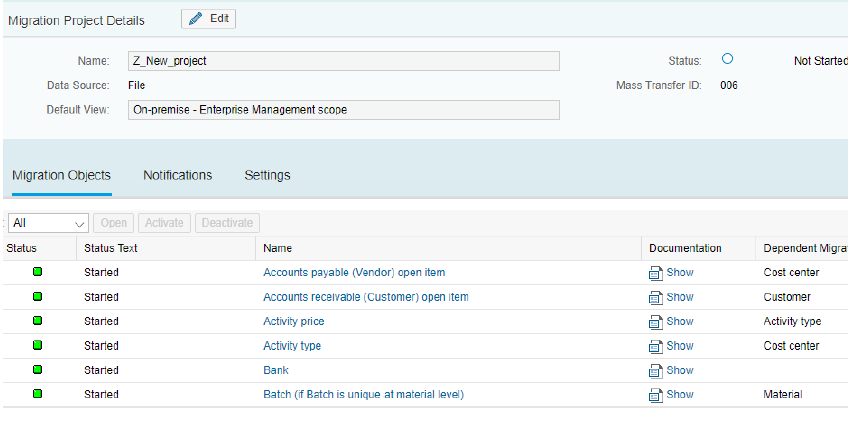
Migration object comes with the following information
For example, when material migration object is selected, following screens will appear:
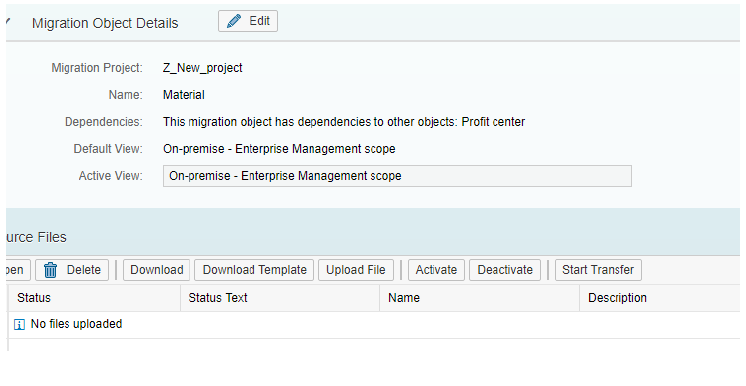
After selecting migration object we need to execute the following steps.
a. Download Template- When download template is clicked for the 1st time, the system will copy object template into migration project. This template will provide the list for fields which should be filled for data transfer. A template is downloaded in excel format. If .xml is not given, then save file with .xml. Template fields, type, length should not be changed and always use paste ‘V' option for copying data in the template. Once a template is copied into the project, then any changes to a template by SAP do not reflect in that project’s template. Here is an example of a template file.
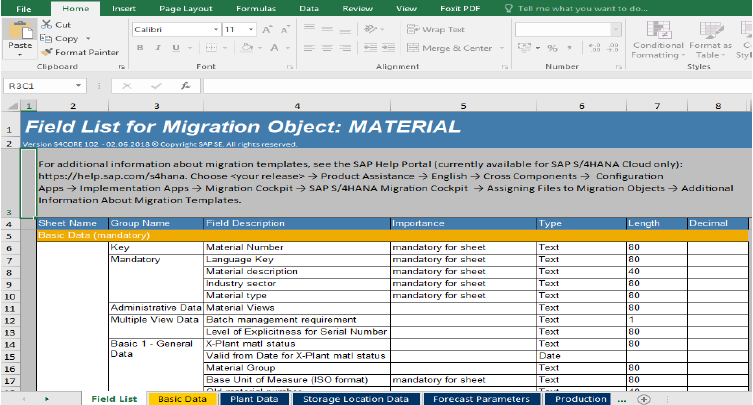
First sheet is always a field list which contains information about mandatory/optional fields, field length, type etc. Here we can see one file (basic data) is in orange colour, it means this is a mandatory sheet in which we have to provide data. Others sheets are optional.
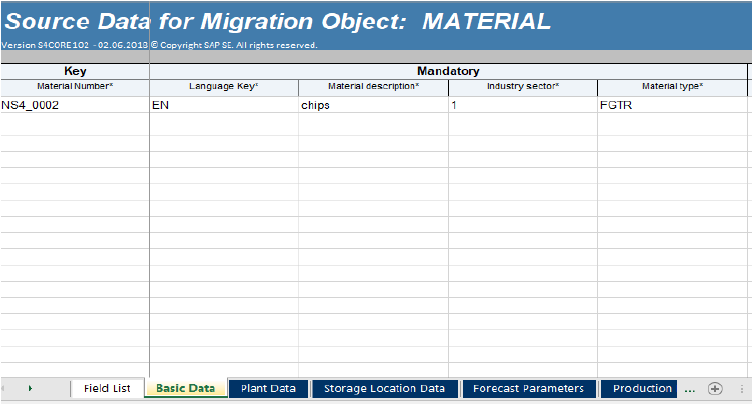
We have entered one entry in sheet for material NS4_002 with all other mandatory fields like material description, language key, industry sector etc.
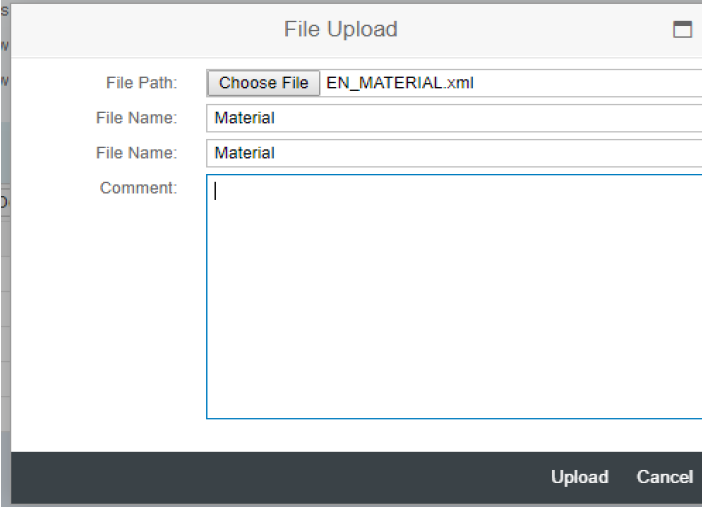
b.Upload file – Legacy data can be filled into the downloaded template. It can then be uploaded as a .XML file in MC for migration. More than one file can also be uploaded.
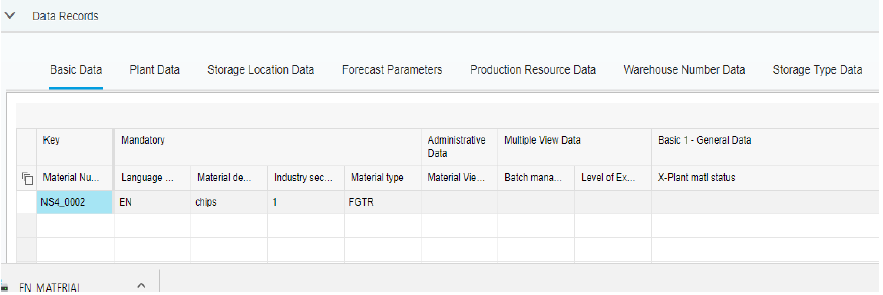
c. View and Edit- Once a file has been uploaded, data can be viewed by clicking on the name of a file. If required, data can be edited in the file by clicking on the edit button.
d. Activate – Transfer process can be started only for Activated files. File are activated by clicking on Activate button.
e. Deactivate – In the case of multiple files, if the user doesn’t want to transfer some files, then they can choose the file/s and deactivate them. File with active status can be transferred.
f. Start Transfer - Data transfer for active files can be started by clicking on the ‘Start Transfer’ button.
Below screen would appear after the "Start Transfer" process has been initiated, where 4 steps will be performed.
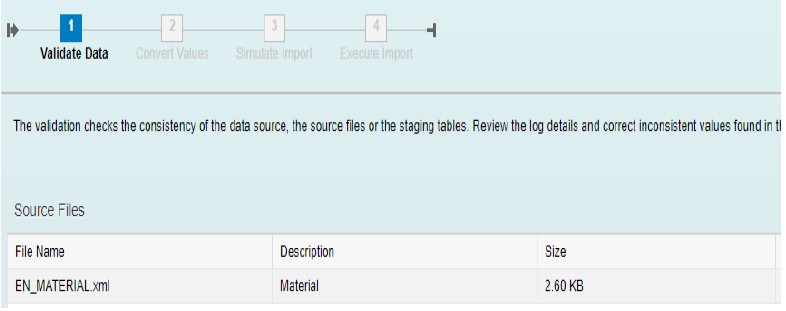
Following steps have to executed after starting the transfer of data:
After executing all above steps, press FINISH button to commit changes in the database.
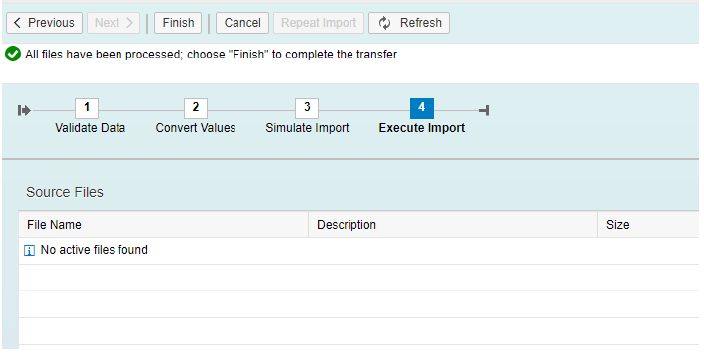
After execution it shows status as follows:
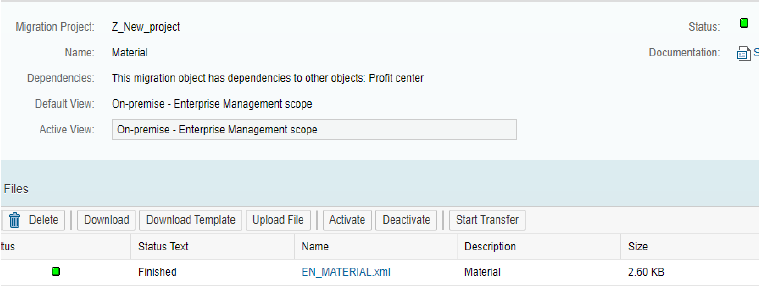
In case of errors, error records need to be corrected and then the corrected file will have to go thru the above process. MC supports only insert statement
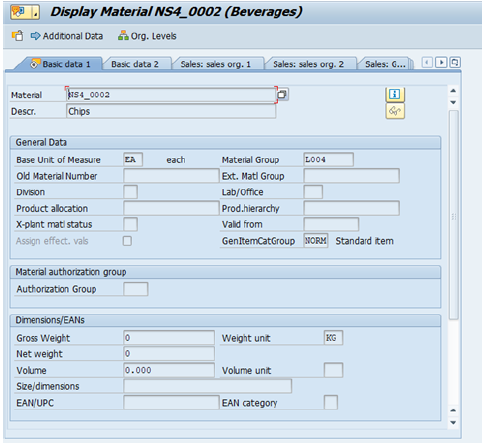
After successful save, data can be viewed in MM03 transaction
SAP Migration cockpit is a web-based tool that allows download of the predefined template in excel sheet format, in which legacy data can be filled and uploaded into S/4HANA system. Basic mapping functionality is provided and SAP standard BAPI’s are used to import the data. It also has error logs to provide information on errors and warnings.
Limitation of using this tool is that it has no data cleansing, no data extraction, and only predefined templates can be used.